As an Amazon Associate this site earns from qualifying purchases.
Quick Picks
| Frame | Screen and storage published | Best suited to | Link |
|---|---|---|---|
| AEEZO Digital Picture Frame, 10.1'' WiFi Electronic Photo Frames with 32GB Memory | 10.1 inch, 1280 x 800 IPS touch screen, 32GB, AiMOR app [S3] | A desk or nightstand where a compact frame and a simple app pairing matter more than size | Check Price on Amazon |
| BIGASUO Digital Picture Frame Frameo 15.6" | 15.6 inch, 1920x1080 IPS FHD touch screen, 64GB, Frameo [S5] | The best balance here for a living room: full-HD resolution on a mid-size panel, on the widely used Frameo app | Check Price on Amazon |
| Arktronic FRAMEO 21.5" Digital Picture Frame, Touchscreen, 64GB | 21.5 inch touchscreen, 64GB, Frameo [S4] | A wall or console where the frame is meant to be seen across a room | Check Price on Amazon |
Disclosure: We earn a small commission from qualifying Amazon purchases at no extra cost to you.
As an Amazon Associate we earn from qualifying purchases. This page contains affiliate links, and we may receive a commission if you buy through them — at no extra cost to you.
As an Amazon Associate, we earn from qualifying purchases.
Last Updated: September 2026
Here is the short answer. To set up a Wi-Fi digital photo frame, plug it in, choose your language, join your 2.4 GHz home Wi-Fi network from the frame's on-screen list, install the companion app the manufacturer specifies, then pair the app to the frame using the code or QR the frame displays. Most frames are sending photos within ten to fifteen minutes, and almost every failure at that stage comes down to one of three things: the wrong Wi-Fi band, a mistyped password, or an app that was never paired to the frame's ID.
The reason this trips people up is that a digital picture frame is not a passive object like a poster. It is a small Android-style computer with a screen, and it needs the same network handshake your phone does. Below is the process end to end, the frames that make each step easier or harder based on what their listings actually publish, and the fixes for a digital picture frame not connecting to wifi.
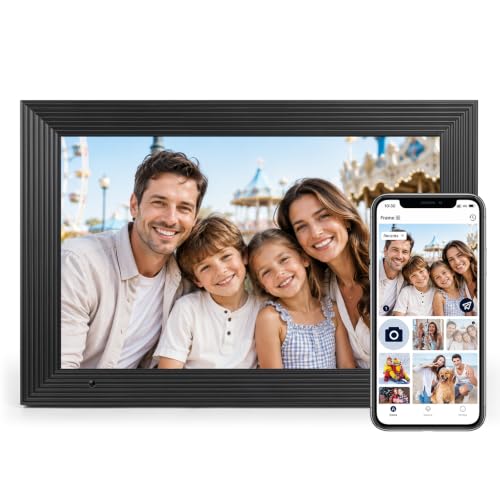
- Instantly Share Every Moment with Loved Ones: With the AiMOR app, Instantly share life's special moments to the digital picture frame from anywhere. You can also grant photo
- 10.1 Inch Crystal-Clear Touchscreen: Featuring a 1280×800 high-definition IPS touchscreen with adjustable brightness, this digital picture frame faithfully reproduces every
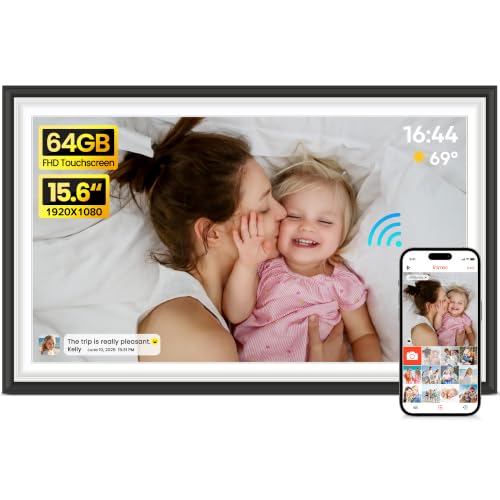
- 【Relive Every Memory in Stunning Full HD】Enjoy every smile, sunset, and celebration in vivid, true-to-life colors on the 15.6" 1920×1080 IPS touchscreen. Wide viewing angles and
- 【Massive 64GB Storage Stores 100,000+ Photos】Built-in 64GB storage holds up to 100,000 photos, so you can preserve every cherished moment without worrying about space. Easily
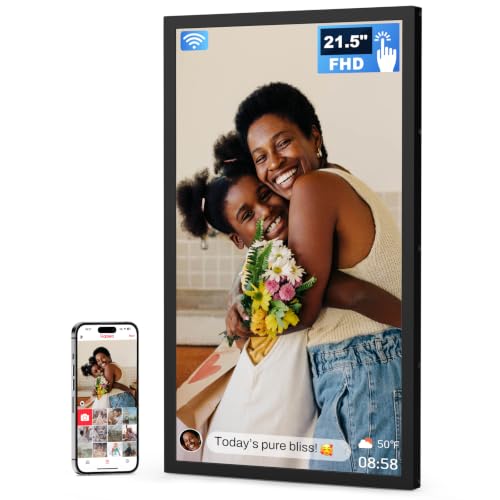
- SHARE PHOTOS & VIDEOS FROM ANYWHERE: Use the free Frameo app to send photos and videos privately from your phone to the frame. Invite multiple family members and friends to share
- EXTRA-LARGE 21.5" FHD TOUCHSCREEN: Enjoy every detail on a 21.5-inch 1920 × 1080 FHD IPS display with vivid colors and wide viewing angles. The responsive touchscreen makes setup
The Problem: Why Frame Setup Stalls
Most frames in this category are built around one of a handful of companion apps. Two of the three frames covered here name Frameo directly in the product title, and the third names its own app, AiMOR.
That matters more than the screen. The app decides how relatives send photos, whether they need an account, and what happens when the frame changes networks. Pick the frame first and discover the app second, and you may end up asking an 80-year-old to install software they will never open again.
The second sticking point is the network itself. Frames of this class typically expect a 2.4 GHz signal. If your router broadcasts 2.4 GHz and 5 GHz under one merged name, the frame may see the network, accept the password, and still fail to complete the join — which reads to the owner as a broken frame.
Step-by-Step: Connect a Digital Photo Frame to Wi-Fi
- Find your 2.4 GHz network name before you unbox anything. Open your router app and note the exact SSID and password. If both bands share one name, temporarily split them or enable a guest 2.4 GHz network for setup.
- Power the frame on a flat surface, not on the wall. You will be tapping a touchscreen through several menus. All three frames here are touchscreen models, so setup happens on the glass rather than through a remote [S3][S4][S5].
- Choose language and time zone. Getting the time zone right now saves you from a slideshow that thinks it is 3 a.m.
- Select your Wi-Fi network and type the password carefully. Use the eye icon to reveal it. Passwords with ambiguous characters are the single most common cause of a frame that says "connecting" forever.
- Install the correct companion app. For the BIGASUO 15.6" and the Arktronic 21.5", the product titles both name Frameo [S4][S5]. For the AEEZO 10.1", the title names AiMOR [S3]. Installing the wrong one is a dead end — they do not talk to each other.
- Pair the app to the frame. On the frame, open the add-friend or pairing screen and let it generate a code. Enter that code in the app on your phone within the time window shown. This is the step people skip; a frame on Wi-Fi with no paired sender will sit on a blank slideshow indefinitely.
- Send one test photo before you gift or mount it. Confirm it arrives, rotates correctly, and displays at the orientation you want. The AEEZO listing specifically advertises auto-rotate [S3].
- Invite the rest of the family. Each additional sender repeats step 6 with their own code. Do this while you still have the frame in your hands.
Tools and Products You'll Need
You need three things: the frame, a phone with the matching app, and your 2.4 GHz Wi-Fi credentials. That is genuinely it — no computer, no SD card, no cables beyond the included power adapter.
Recommended Products
BIGASUO Digital Picture Frame Frameo 15.6" — the middle option, and the one whose published numbers make the most sense for a shared room. Check Price on Amazon
Arktronic FRAMEO 21.5" Digital Picture Frame, Touchscreen, 64GB — the largest screen of the three, same 64GB storage figure as the BIGASUO. Check Price on Amazon
AEEZO Digital Picture Frame, 10.1'' WiFi Electronic Photo Frames with 32GB Memory — the compact one, on AiMOR rather than Frameo. Check Price on Amazon
AEEZO Digital Picture Frame, 10.1'' WiFi Electronic Photo Frames with 32GB Memory — Best for a compact desk or nightstand frame
The listing publishes a 10.1-inch, 1280 x 800 IPS touch screen with 32GB of memory and setup through the AiMOR app [S3]. Do the arithmetic on that panel: 1280 x 800 across 10.1 inches works out to roughly 150 pixels per inch, which is a reasonable density at arm's length on a nightstand and a fair reason this size exists.
The 32GB figure is half of what the other two frames here publish [S3][S4][S5]. Whether that matters depends entirely on how many photos your family sends — and neither the manufacturer nor the listing publishes a photo-count capacity, so treat any specific number you see elsewhere with suspicion.
Pros: 1280 x 800 IPS panel and auto-rotate are both stated on the listing [S3]; the smallest footprint of the three, which suits a desk where a 21.5-inch frame would dominate.
Cons: It runs AiMOR, not Frameo, so relatives who already have Frameo installed for another frame will need a second app. It also carries the lowest published storage of the three at 32GB [S3].
Verdict: Right for a single-room, single-sender setup. Check Price on Amazon
BIGASUO Digital Picture Frame Frameo 15.6" — Best for a living-room frame on the Frameo app
This is the pick if you want one frame to do most jobs. The listing publishes a 15.6-inch 1920x1080 IPS FHD touch screen with 64GB of memory, running Frameo [S5]. That combination is the reason it earns the spot: full-HD pixels on a 15.6-inch panel is about 141 pixels per inch, and it pairs that with the larger of the two storage figures in this group.
Frameo is also the app named by the Arktronic frame [S4], so a family that standardises on it can send to both frames from the same phone app.
Pros: 1920x1080 on a 15.6-inch IPS panel is the highest published resolution of the three [S5]; 64GB matches the largest storage figure here [S4][S5].
Cons: At 15.6 inches it is still meaningfully smaller than the 21.5-inch Arktronic [S4], so it will not read as well from across a large room. The listing does not publish a stand type, mounting option, or power draw.
Verdict: The most sensible default of the three for a shared living space. Check Price on Amazon
Arktronic FRAMEO 21.5" Digital Picture Frame, Touchscreen, 64GB — Best for across-the-room viewing
The published spec is short and to the point: a 21.5-inch touchscreen with 64GB, running Frameo [S4]. If the frame is going on a wall or a console table and needs to be legible from a sofa, size is the spec that matters most, and this is the largest here by a wide margin.
Here's the thing: the listing does not publish a resolution figure for this frame [S4]. That is a real gap. A 21.5-inch panel spreads whatever pixels it has over more than four times the area of the 10.1-inch AEEZO, so resolution is exactly the number you would want confirmed before buying. Ask the seller, or check the listing detail section, before you commit.
Pros: Largest screen of the three at 21.5 inches [S4]; 64GB storage, matching the BIGASUO [S4][S5]; runs Frameo, the same app as the BIGASUO [S4][S5].
Cons: No published resolution on the listing [S4], which is the main unknown. A frame this size also needs wall or console space that many rooms simply do not have.
Verdict: Buy it for the size, but get the resolution confirmed first. Check Price on Amazon
Digital Picture Frame Not Connecting to Wi-Fi: Fixes
- Confirm the band. Move the frame onto a dedicated 2.4 GHz SSID. This resolves more cases than everything else combined.
- Retype the password with it visible. Do not trust muscle memory on a touchscreen keyboard.
- Move the frame closer to the router for the initial join, then relocate it. A first-time handshake is more fragile than an ongoing connection.
- Check for a captive portal. Hotel, dorm and some ISP-managed networks require a browser login the frame cannot complete.
- Restart the router, then the frame, in that order. Give the router two full minutes before powering the frame back on.
- Reset network settings on the frame rather than factory-resetting the whole device, if the menu offers it. You keep your photos.
Tips for Best Results
- Set the frame up in your own home, on your own network, then re-run the Wi-Fi step at the recipient's house. Pairing survives the move; the network credentials do not.
- Pair every family member before gifting. Nobody wants to walk a grandparent through step 6 over the phone.
- Match the frame size to viewing distance, not to budget. A 10.1-inch screen [S3] on a mantel across the room is a wasted purchase.
- Write the frame's Wi-Fi password on tape and stick it to the back of the frame. Router changes happen.
Common Mistakes to Avoid
- Installing the wrong app. Frameo and AiMOR are different systems; the frame's own title tells you which one it uses [S3][S4][S5].
- Assuming Wi-Fi alone means it works. A connected but unpaired frame shows nothing.
- Mounting before testing. Confirm orientation and a test photo first.
- Buying on screen size alone. The Arktronic's 21.5-inch panel is the biggest here, but its listing does not publish a resolution [S4].
How We Research
This site does not do product research, and this page is no exception. Every specification above was read from the Amazon Creators API verified product record for each ASIN, retrieved 2026-09-05, and from the corresponding retailer listings [S3][S4][S5]. Where a figure is absent — resolution on the Arktronic, photo capacity on any of the three — it is stated as absent rather than estimated. The setup and troubleshooting steps describe standard Wi-Fi frame procedure, not a procedure performed on these units. For general consumer product safety and recall information, the CPSC [S1] and USA.gov's consumer protection resources [S2] are the appropriate authorities.
Final Verdict
If you want one recommendation: the BIGASUO Digital Picture Frame Frameo 15.6" is the frame to buy for most households, because its listing publishes both the highest resolution of the three at 1920x1080 and the top storage figure at 64GB, on a 15.6-inch panel that suits a living room without dominating it [S5].
Go bigger only with intent. The Arktronic FRAMEO 21.5" Digital Picture Frame, Touchscreen, 64GB gives you the largest screen here [S4], but the missing resolution figure is a genuine unknown you should resolve first. And the AEEZO Digital Picture Frame, 10.1'' WiFi Electronic Photo Frames with 32GB Memory earns its place on desks and nightstands, where its 1280 x 800 panel across 10.1 inches is perfectly adequate at close range [S3] — just accept the separate AiMOR app.
Related Resources
- Choosing the right digital photo frame size
- Frameo vs. other photo frame apps
- Gifting a photo frame to a parent or grandparent
Frequently Asked Questions
Can I set the frame up before gifting it? Yes, and you should. Pair every sender on your own network first, then redo only the Wi-Fi step at the recipient's home.
Which app do these frames use? The BIGASUO 15.6" and the Arktronic 21.5" both name Frameo in their product titles; the AEEZO 10.1" names AiMOR [S3][S4][S5].
How many photos will 64GB hold? Neither the manufacturer nor the listing publishes a photo-count figure for any of these frames, so no honest number can be given here.
Why does my frame connect but show nothing? Connection and pairing are separate. A frame on Wi-Fi with no paired sender has no photos to display.
Do I need a computer? No. Setup runs entirely on the frame's touchscreen and a phone app; all three frames here are touchscreen models [S3][S4][S5].
What resolution should I look for? Density matters more than raw pixels. The BIGASUO publishes 1920x1080 across 15.6 inches [S5]; the Arktronic publishes no resolution at all for its 21.5-inch panel [S4].
Sources and Methodology
Nothing on this page came from a bench, a lab, or a living room — nobody here plugged in one of these frames. What we did do was read the Amazon Creators API verified product records for all three ASINs, retrieved 2026-09-05, alongside the retailer listings themselves [S3][S4][S5], and reason from what those records actually publish: screen size, resolution where given, storage, panel type, and the named companion app.
For a category like this, that is enough to answer the questions that decide a purchase — how big the screen is, how sharp it will look at your viewing distance, and which app your family will have to install. It is not enough to tell you how the panel handles a sunlit room or how the stand feels, and where a listing simply omits a spec, such as the Arktronic's resolution [S4], this page says so instead of filling the gap. Broader consumer safety and recall information sits with the CPSC [S1] and USA.gov [S2].